ThinkPad X301 bios password removal
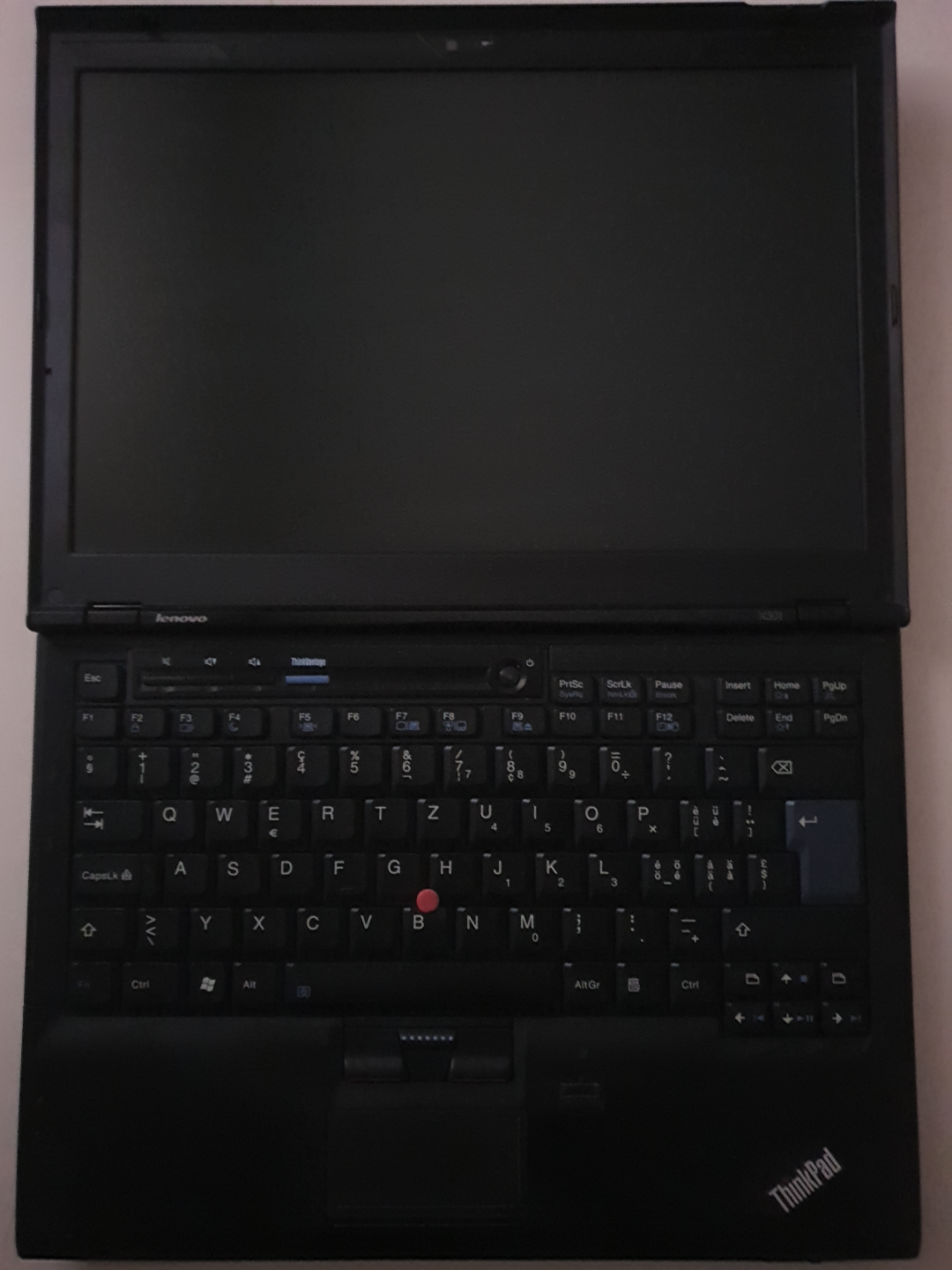
I recently came into possession of this x301 which cost me around 10$. The seller stated it had a locked bios which proved to be a bit more tricky to clear than I initially suspected.
Apart from this thread (and some of the resources mentioned there) I didn't find any other information regarding clearing the password on this model as it seems to be somewhat rare.
Since the OP of the thread never succeeded in clearing the password with this method (at least he didn't confirm he had) I wasn't sure if it was possible for this model, but after dozens of attempts I now know it is.
Before you start trying to clear the password I want to preface that If you're doing this just to mess around/for demonstration purposes and already know the password for the bios/set it yourself, you might want to pick a different thinkpad model. I found out (the hard way) that incorrectly rewriting the password will actually write some gibberish into the ROM, once again leaving you with a locked bios. And although it didn't happen to me, there's a possibility of bricking the laptop even if you do everything correctly.
Steps
1.Remove the keyboard [official instructions]
The procedure is similar to other thinkpads of this era, however the timing needs to be a lot more precise. The first thing you need to do is to lift out the keyboard to get to the EEPROM which will need to be shorted.
Two screws hold the keyboard in place, unscrew them and gently push the keyboard forwards and then lift it out while pulling it backwards. You will need the keyboard to power on the laptop, so If you have enough room to work with just leave it connected.
2.Expose the EEPROM
The next step is to peel away/cut out the protective film to expose the EEPROM which needs to be shorted for this to work. I used a knife to make a small cut out as it was much easier than trying to remove the whole film.
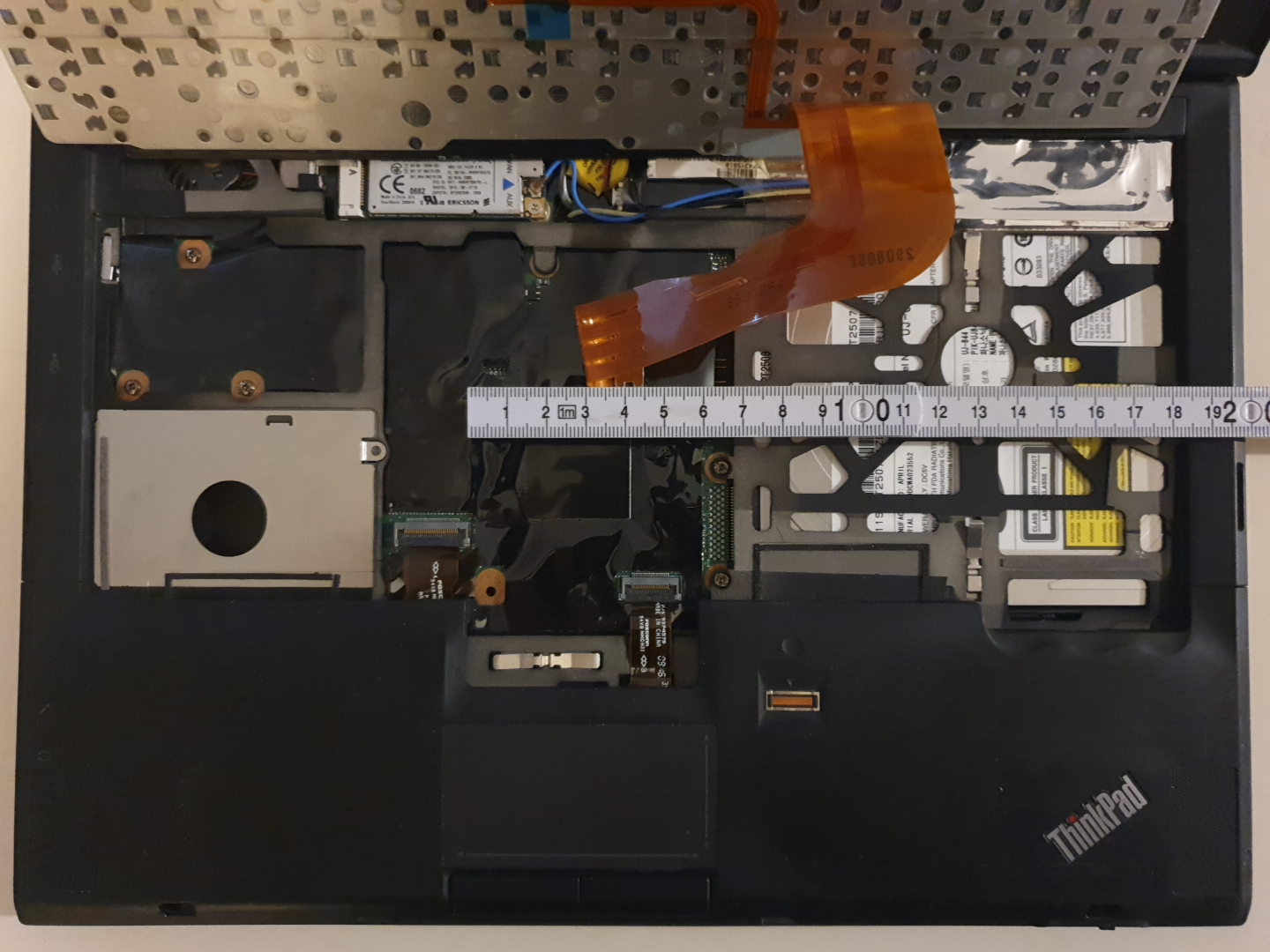
The chip is located here (around 18,5cm from the inner edge of the right plastic cover), you should be able to feel it underneath the film. Press the film beside the chip (to the right), this will tighten it and it will be easier to cut. Make a small cut and peel the film to reveal the chip.
Get a USB keyboard and connect it to the laptop as it will be easier to make the inputs since the laptop's keyboard will need to stay lifted.
3.Short the EEPROM
Now comes the tricky part. You will probably need to do the following steps multiple times before you succeed. Read through them first!
If you're doing this alone get a flathead screwdriver to make the short. You will need to power on the laptop, wait a little while (not any longer than it takes for the Lenovo splash screen to show up) and then short the two pins on the left of the EEPROM pictured below.
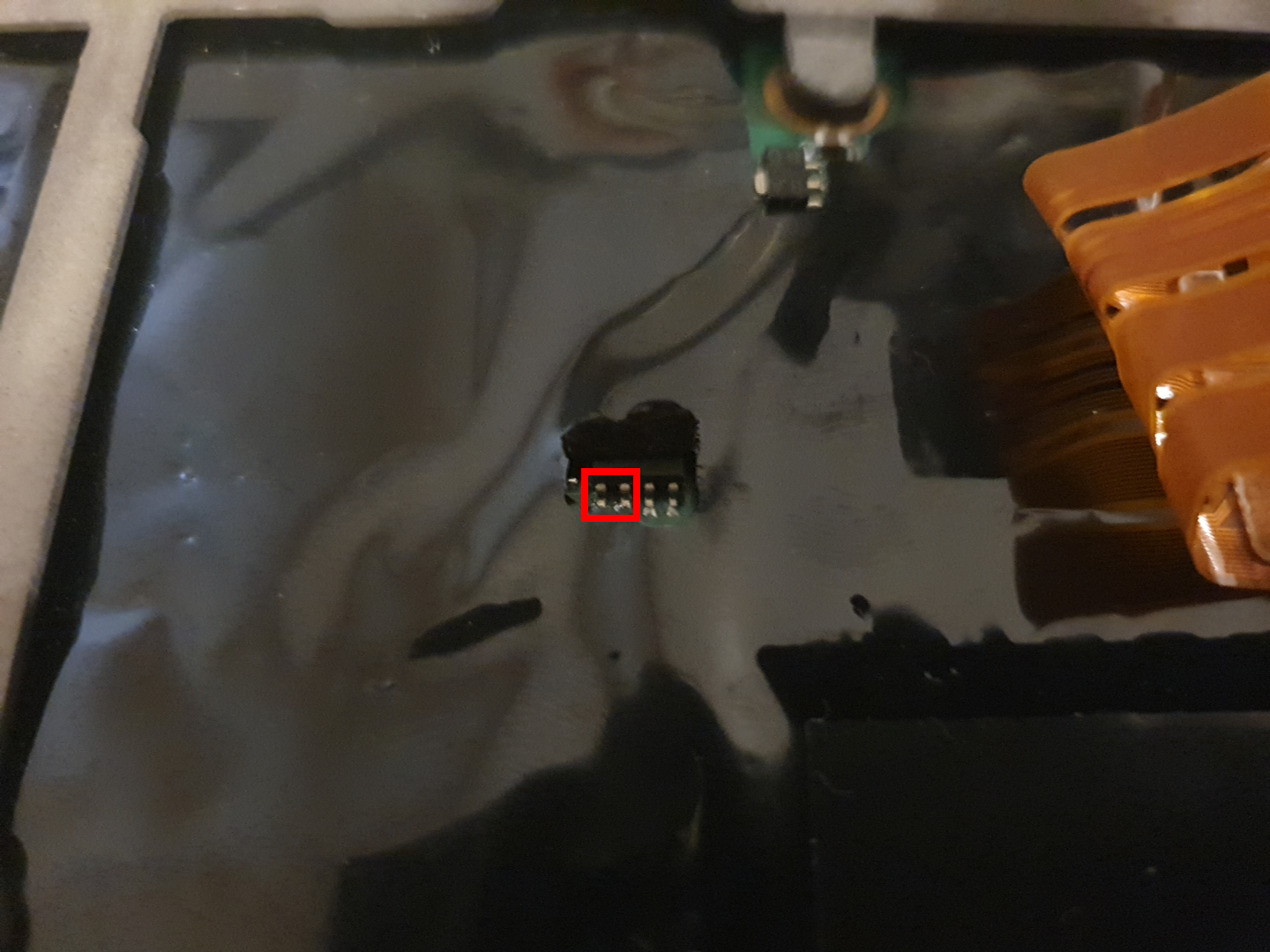
If you short them from the start the laptop will enter a boot loop, that's why you need to wait. On other models many guides tell you to wait before the splash screen shows up but I found that you can short the pins a bit earlier than that. When the splash screen shows up press F1 to enter the bios. If you shorted the pins correctly you should enter the bios right away, and won't be prompted to enter the password - keep holding the short we still haven't rewritten the password yet.
4.Rewrite the password
Navigate to Security then to Password and lastly to Supervisor Password but don't press enter just yet. If you held the short correctly while in the bios, the Supervisor Password should be set to [Disabled]. If it is you can continue with the next step, if it's not just turn the laptop off and try again untill it is.
You need to release the short and immediately afterwards press enter to open the password entry window (this should take no more than a fraction of a second). You will know right away if you succeeded, because the window should look like this:
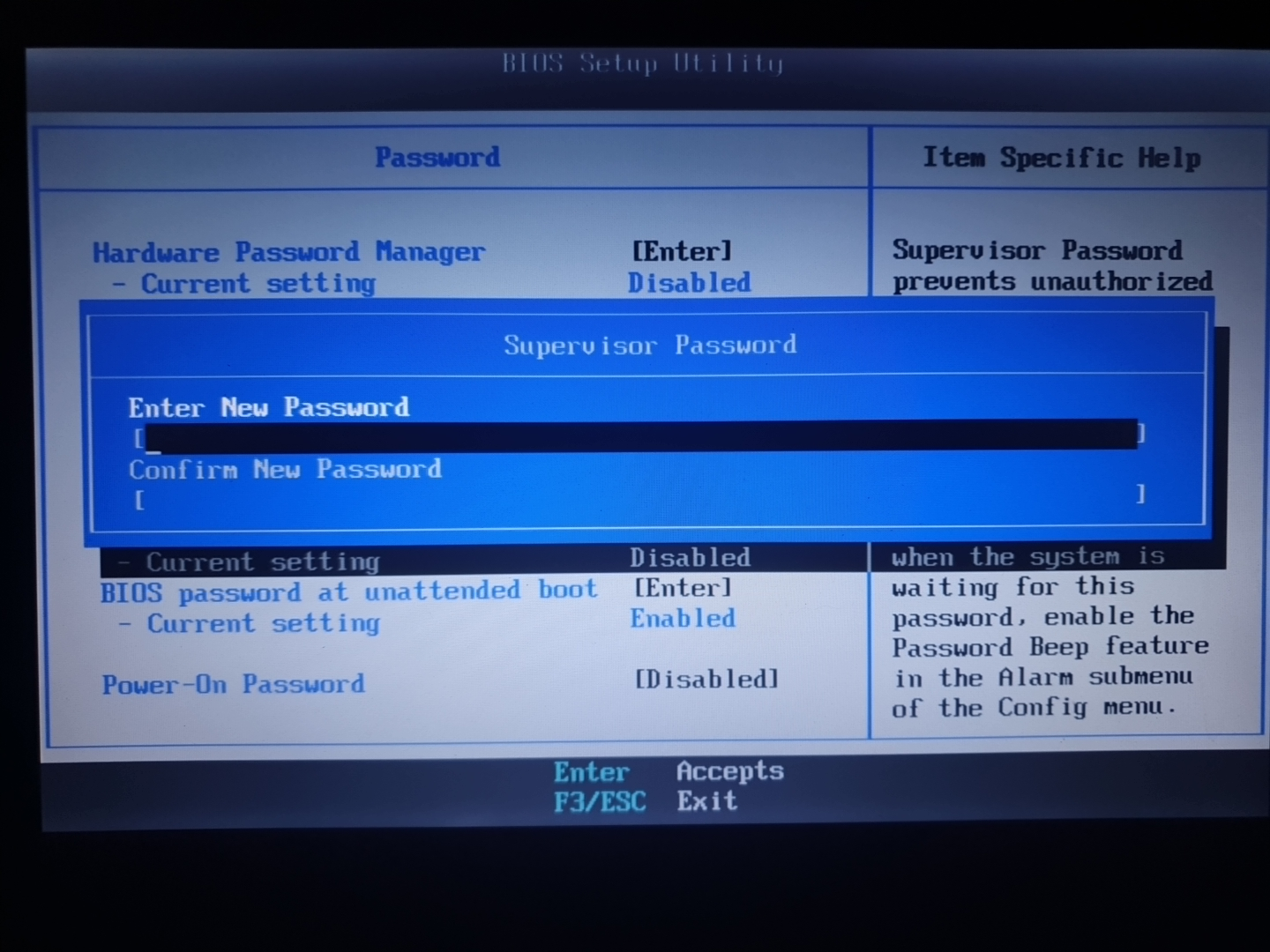
Enter the new password twice, hit enter and then F10 to save the changes. You should now be able to enter the bios with the password you set.
Notes
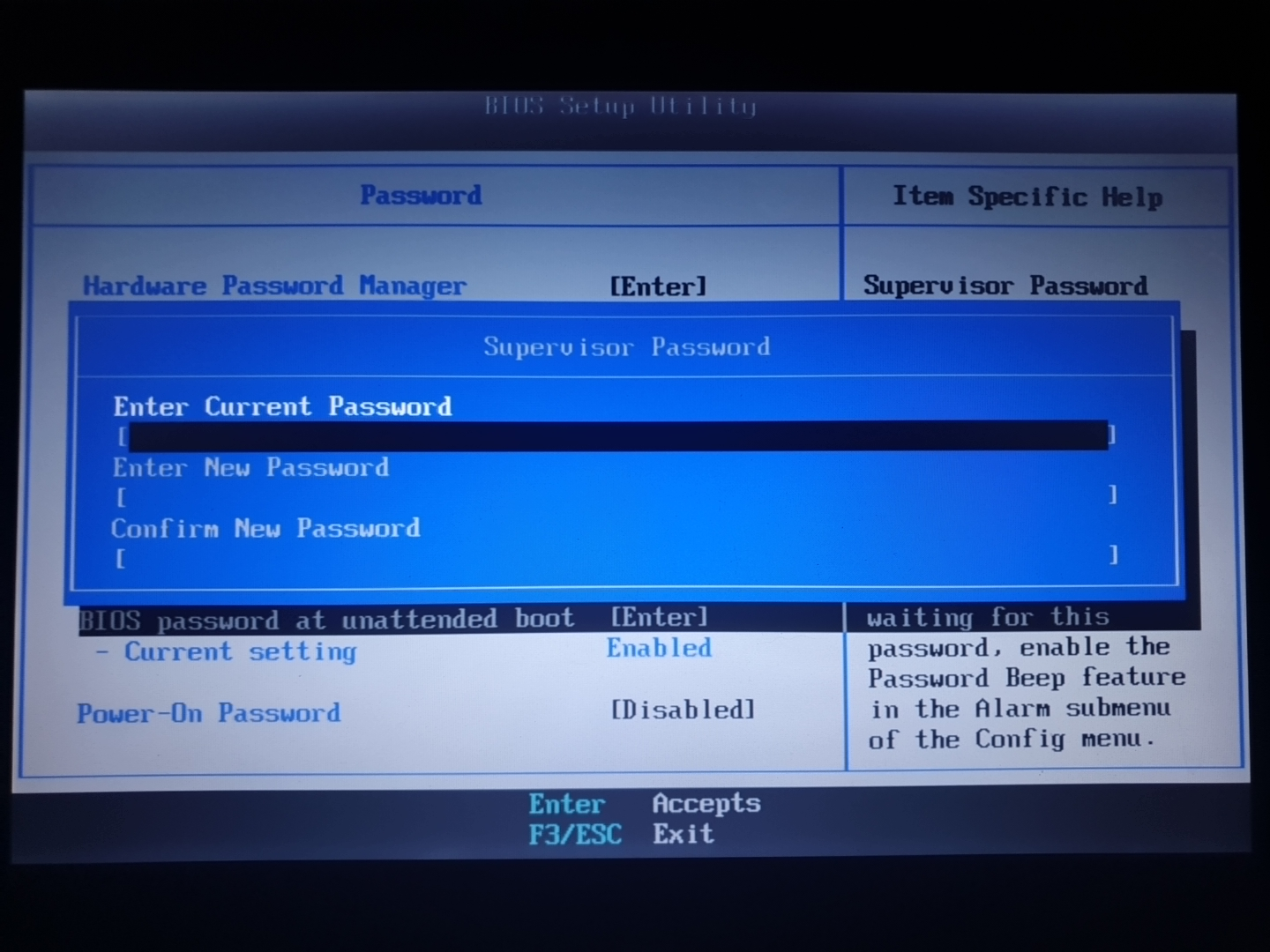
If the window asks you for the current password (pictured bellow) you pressed enter too late and you will need to try again. If it's a smaller window than the one pictured above, you released the short too late and you will also need to try again (I unfortunately don't have a picture of this smaller window). You will be able to enter a new password in this smaller window but note that it won't be written to the EEPROM correctly and will instead corrupt the previous password essentially locking you out of the bios even if you knew the original password.
Date written: 12. Nov 2026